Off the Top: Workflow Entries

20052010201520202025

Showing posts: 1-15 of 24 total posts


10 October 2026

Links Weren't Linking

For more than a decade I have had a Python link checker I occasionally run against my Links :: vanderwal.net page. I regularly update the links page and the additions are manual inserts and reposting the page when I find something I’m regularly going back to, or want to go back to. About 18 months back my long used python script using Beautiful Soup (HTML parser) - Wikipedia needed updating the BeautifulSoup package and tweaking the script a little bit.

Over these last 18 months the bot / scraper / AI crawler wars have become a hot mess and running a link checker script, unknowingly was getting blocked by hosts / servers that are working to not get slammed by the orders of magnitude of increased traffic from non-organic sources. One method (among many) server owners deplay is blocking access to websites from requests with no user agent or an old user agent claim (as this is what a lot of the aggressive inorganic traffic uses). My old school link checker feels like a web version of Wall-E going around and checking to clean up my broken links and getting caught in the wake from large AI industrial retrieval ships.

Thursday I wanted to run my link checker and realized it wasn’t going to be all that helpful. I thought a quick edit of the script to add a more current user agent to the what is presented to the link’s server would help. I went with: “Mozilla/5.0 (Macintosh; Intel Mac OS X 10_15_7) AppleWebKit/605.1.15 ” “(KHTML, like Gecko) Version/18.0 Safari/605.1.15”. This one minor change when running the link checker removed about 200 false positive broken links.

With many things I have run and been doing for ages, my estimation of how much or how many of something is wildly off. Another minor tweak I made was to list the number of links tested on my Links :: vanderwal.net page. I have had a links page for two or three years longer than I have had a web domain. I set up this domain in 1997 and the site started with a homepage and a links page of things I wanted near in reach. My first link check I made on Thursday I had 943 links. Well, that was about double of my rough estimate.

Updating to Get Better Data

When I last updated the Python script to a new version of BeautifulSoup I didn’t really change much else. Now that things were less than optimal I noticed my Python script just used a default check, but wasn’t using GET. Adding GET would provide feedback as to the type of HTTP response codes I was getting and that would help reduce my manual checks of the list of “broken links”.

A quick test after adding GET had more updates and parsing needed. If I’m getting the actual responses back, I want to log the returned codes and information, but I really want that organized. The initial output of the checking is a long list of links with non–200 status with their state, the link, error code, if a redirect it tried the redirect and if a 200 it shows the “200” and the new link.

The initial output from running BeautifulSoup is the list in a temporary text document. The last part of the script runs through the text document and turns that list into a grouped list and table markdown file in my Notes directory that Obsidian watches over.

Structured Documents Made the Next Steps Easier

The structured Markdown note has sub-headings for the different returned link states. This works like a really good triage list. I could easily double-check the links marked as broken (404, 409, 500, and no DNS) in the table and added another column to the table for the checked status I provided. I had 52 of these and I went through them in about 15 minutes.

I made a back-up of the links page and verified git was current so I could rollback. I handed off the update to Claude Code to follow my notation of the section I just checked, my structured outcome note, and to follow one of the four processes I posted. It made the updates in seconds and I ran diff against the two files and the outcome was perfect.

I moved the outcome page to production and ran a commit. I ran the Python checker again and tackled a couple of small sections in the same manner. On my 3rd running of the checker I looked at the roughly 430 redirections captured. Since Claude had managed the two prior updates perfectly I had it handle the redirection updates. This too was processed quickly and the output links page was perfect on the manual check. But Claude Code running Opus 5.5 had additional notes from the update that included some redirects were not similar to the page historically that I linked to (in some cases the domain had changed hands years ago and Claude derived context from surrounding links that it was no longer a fit), noted that sites had changed languages, sites were now ads from domain resellers, and more. It had a list of links that could now be problematic. I wasn’t expecting this additional feedback and the feedback I checked was spot on and insanely helpful.

I ran the Python link checker a fourth time and I was down to 916 links on the page. Broken links gone, with many of my “archive” links gone too, which are the gray links as the linked site went from not being updated in years to now fully gone from the living internet. I have left things with this fourth pass of the checker on my to-do list. The links that are large sites with large organizations behind them are in the blocked connection or have “are you human” test in front of them, but still function. I have about 70 or so links that I need to manually go through and log what to do. Some no longer have the content I have long pointed to.

Outcomes

I’m happy with where the Python link checker ended up. The web is a lot more fragile than it seems like it ever was. I was surprised how many links had redirects (I have 50 that still need manual reviews). While I’m bummed many “archive” links are not on the page they were gone and they could be let go.

The two sections on the links page that took the biggest hit are the tech section and the “Urban Planning and Cities” section. Finding sites that fit the urban planning and cities perspective have always been tough to find. Losing some means I need to dig again.


2 October 2026

InfoCloud Overview Finally Posted

I have long thought I had a write-up of the four InfoClouds, as I have been presenting about them since late 2002 with a public presentation in early 2003. These are central to a many of my models and thinking, but are a subset of the Model of Attraction that is the foundation for most things, and it only has its draft write-up available, Model of Attraction - First Draft :: vanderwal.net.

The Overview of the InfoClouds – Personal InfoCloud is now written and posted covering all four InfoClouds (Personal InfoCloud, Local InfoCloud, Global InfoCloud, and External InfoCloud). I have been wanting to point to this for a long time. I have a few other posts coming that have needed this to exist to make the other future posts clearer and easier to write.

Familiar Ideas with a Lot of One’s Own Content Make Writing More Work

A week ago when I picked up my task to write this, as something that I really wanted to write was blocked by this not existing, I thought this should be 2 or 3 hours and posted. Uh… well, not so much. I have around 400 to 500 Keynote presentation decks from the last 20 plus years or so and many have some information about the InfoClouds, with the heavily used four cloud image that slides in the pieces as I talk through them. I also had a few workshop Keynote files with the longer more detailed definitions of each of the four InfoClouds and why they are important. But, finding those files specifically was a little more difficult than I thought. Using the new macOS 27 Siri really helped out quite a bit to find and hone a search within the files.

Many versions and variations of definitions for Personal InfoCloud and Local InfoCloud were what really slowed things down. The different variations are all honed for the audience and contextual relevance. Getting that sorted out for a broader audience and more general focus took looking at 15 to 20 different framings with slightly different shadings. Those paragraphs had a few rewrites.

Getting something that worked for the two largely unwritten InfoClouds, Global and External seemed easier at first.Those started to become rabbit holes explaining uses and how to work with them (when they are often secondary and far periphery sources). I realized those, for now, are just good to have and exchanged general framings. The deeper dives can come later (I’ve done some really fun work with clients around them that unlock understanding for large steps forward, but it is very contextual).

As I thought I was done a couple of days ago, or close to it, I started to review what I wrote and some was still quite rough. Last night when I opened it in iA Writer for a focussed edit, I was looking for a commenting tool I had in another markdown editor that is now gone. I would often place self-edits in draft comments. But, in reality I needed complete rewrites for the first two paragraphs and also deleted another, then added a couple of sentences to fill in the removed information. But, today with another read-through and a shorter edit it was ready to post.

Posting in WordPress for Personal InfoCloud

Getting ready this afternoon to post into WordPress my workflows for writing and posting on vanderwal.net are honed. There I have a few scripts to run for markdown clean-up for things I use in drafts, but I needed removing them before posting in WordPress so went through it by hand. Adding an image is a different (yet easier) process than I’ve been using. The categories are different on the Personal InfoCloud site as well. The workflow was a little smoother than the last workflow for the Personal InfoCloud. With a few more to post in the not-too-distant future I think I may have a few small bumps to sort through to make it a bit smoother.

Personal InfoCloud Posting Pattern and Here

Many years back I would post to Personal InfoCloud and the same or similar to here. Then I would just post on Personal InfoCloud by itself. Then I started posting a manually syndicated version in Medium as well as LinkedIn. The Personal InfoCloud site gets more targeted readers, but readership is much thinner these days as I haven’t been posting there all that much. I think for a while I’ll likely post a summary post here and maybe backstory, and use this site to point to there.


16 September 2026

I Wrote What?

Part of the impetus for writing this post has been driven by the updates at A new Observable | Observable, which I recently wrote about Large Observable Update :: Off the Top :: vanderwal.net, and looking at changes in not only Observable, but updates to D3 by Observable. These current and not-too-distant updates have had me thinking about what I could do with some of my blogging data to make interactive charts and graphs. I’ve recently moved a lot of my legacy static charts and graphs to Plotly to gain interaction with them, for many of my own uses. But, in the process of getting a decent data workflow setup for my site (and my notes data) I have relatively clean data locally ready for use and testing.

A Little Data Workflow Background

For this blog I have been pulling down the data from the site’s backend and converting it with a set python script to extract it to SQLite, which is relational but quite fast for reading data and is great for single user write and a few read options. Over the past few months I’ve also been building many data analytics and data visualization prep python scripts (some building JSON files for standalone webpage interfaces). I’ve used Claude to debug, but also just turn out a script in less than couple minutes for the page setup for the D3 or Plotly scripts, which would usually take me 30 to 120 minutes. Once the scripts are set and I’ve reviewed them it is all just setting python flags and minor tweaks to the script to handle a data update.

With these script setups I’ve been able to try quite a few D3 chart and graph options very quickly. Going through the Python code, the data structures for the visualizations, and the hooks for the visualization and I’m rather happy with it for quick outputs.

What Can I See Using Blaugust Data

One of the things I had interest in from my A Wrap to Blaugust / Blaugust run in August was what did all of that look like from a basic statistic and graphical perspective. A few months back I created and ran a bunch of Jupyter queries and visualizations, Personal Blog Data Analysis - Looking at 25 Years. Since then I’ve been thinking about looking at a monthly view with more interactive charts and graphs. Since I had a decent amount of data from August 2026, existing data workflows, and a few D3 charting and graphing options I could work with I took a look.

August Off the Top Force Graph

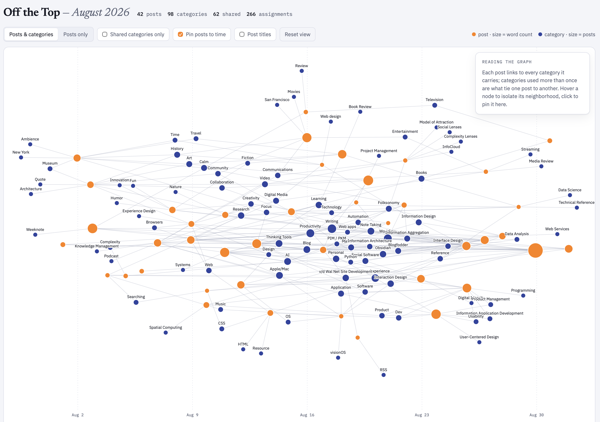
The first is an interactive forced graph with the blogpost as orange nodes with the size corresponding to word count and the tethered edges link to categories for the post. Clicking on the post will show the related categories and pulling on the post node will start to see the other tethered posts connected through the categories. There are few toggles: 1) Posts and categories or just Posts with their related interconnections; 2) Only show shared categories (a category with more than one post); 3) Post to Time, which may be my favorite view, as it take the graph and lays out the posts left (oldest) to right (most recent), with a small light timeline at the bottom and all the other relationships displayed as well; 4) Post titles, which clutters things a bit and adding the toggle resolved that clutter.

You can view this standalone interactive web chart that sits in the Lab :: Off the Top Analytics at the direct link: Off the Top, August Force Graph with Toggles. A sample is here:

A forged graph chart image showing August 2026 posts and connected categories

August 2026 Word Counts

As I was going through the data for August 2026 I knew and could see the word counts for posts, which I don’t have easily (nor quickly) available on my site. But, with the data local in SQLite and I’ve been using the local data to run many types of post analytics, word counts become a simple and quick option that doesn’t impact the site’s performance at all.

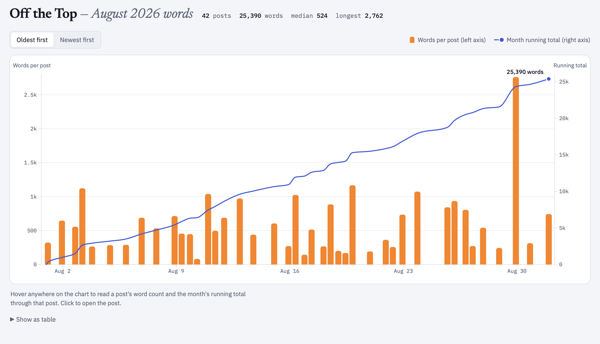
I was really curious about word counts per post across August, but also was more curious about a cumulative word count across the month as well. A quick and easy bar chart and line graph solved this, both having interactive hovers for metadata. August had 25,390 words posted.

The standalone interactive web chart is also in the Lab and the direct link is: Off the Top, August Word Counts by Post and Cumulative Count. A sample is here:

A bar chart image of monthly posts with height correlating to word count and a line above the bar chart showing cumulative word count for the month August 2026 posts

Cumulative Word Count for 2001 to 2026

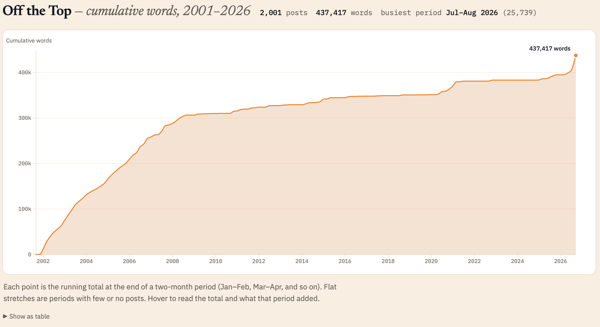
Looking at the cumulative count for August 2026 (the 25,390 words posted in the month) I had no idea what that count was in comparison to the whole life span of the blog (under this CMS that started in late October 2001 and not including the static posts prior to that). I know that in the early months and years of the blog I wrote a lot of short posts and the posts were frequent. Looking at word count I wasn’t expecting the first two or three years to have roughly the same growth slope up to 2008.

Looking across 25 years of posts I knew a single post analysis was going to be a bit rough for an interactive standalone webpage. Monthly would be better, but could still be a bit too much to process dynamically in the browser. Quarterly, was just a bit on the thin side and more difficult to see trend shifts and correlative line slope. I settled on a two-month interval and I had something interesting in under a minute.

July and August 2026 were the highest word count across all time on this blog. The 25 thousand words is roughly a quarter of a 250 page book. But, now that I had the bi-monthly chart I can also see the early years I had roughly similar counts per two months up until 2008 and then there was the “great flattening”, until the “great pandemica” lockdown when things ticked up again until lockdown ease and work went back to its normal patterns.

I ended up over the 25 years with 437,417 cumulative words just on this blog. That is roughly 4 books of 250 pages. It would be a rather odd book, but in just considering word count as the focus. I find word counts odd, particularly writing to word counts. I’ve had a regular column in tech publication that had a 750 rough word count topic, this was at a time when my posts were often 1,000 to 1,250 words on average and 750 words was about where I had the framing set to get to the meat of things. I mostly write on this blog to an amount where there aren’t good words left, which is 200 at times to 2,500 or more. To see my writing shifts in the early years roughly similar in trajectory rather interesting.

The standalone interactive web chart is also in the Lab and its direct link is: Off the Top All-time Cumulative Word Count. A sample is here:

A line chart showing cumulative word counts across 25 years of blog posts

Will this Continue?

Now that these are standalone webpage charts and graphs, I’m not sure what I will do. I need to get the templates consistent from a layout and design perspective. But, once the standalone webpage is created I just copy it to the Lab or other location, and this can be automated with a quick script. I think the month-by-month analytic is interesting, at least to me. I have not only the local standalone version that I posted, but a rough output build that isn’t fully self-contained that I can play with and iterate on.

If you like this and want to see more ping me on one of the services or send an e-mail using the Contact in the navbar.


12 September 2026

Tony Seale’s Knowledge Graph and Complexity Posts

This week I fell into two (mostly) enjoyable rabbit holes. One was digging into the writings of Tony Seale (one of The Knowledge Graph Guys) after a few friends had shared his posts in LinkedIn. The hedging of the enjoyability stems from the utter poor environment LinkedIn is for finding, holding on to, sharing outside the confines, and working with wonderful ideas in one’s own space and properly giving attribution. Only posting information in LinkedIn is like going to a huge supermarket, but cooking, and serving your creation there. LinkedIn is poorly built for this intention. If you care about the ideas you are creating and sharing, put them where you control them and others who are inspired and want to find and interact more with your ideas and you can do so far more easily.

That aside, I did enough battle LinkedIn’s incredibly poor interaction design and information design for idea sharing to find an abundance of good ideas shared by Tony Seale. So many framings are at a good level of a little more than simple but crafted well to have concepts that are difficult for others to grasp easily put closer to within their reach. I am always looking for explainers like these to share and for inspiration. But, even better when the ideas and framings are really solid, like Seale’s.

I dug back into the blog of The Knowledge Graph Guys, which is good, but is lacking a name and the posts don’t have the consistency of the same voice, which is to be expected. But, give names to the different voices.

I found some of Seale’s posts on his Tony Seale – Medium space. These Medium posts focus more on complexity, which I enjoyed as well.

I pulled some notes and graphics from Tony Seale’s LinkedIn posts, but I’m still pulling all of that together (see frustration with LinkedIn). I really like the linking to prior content and outside material in his posts as well as those in The Knowledge Graph Guys (which isn’t all guys). Many of the posts I agree with as stand-alone pieces, but I need to pull them together in context to see those connections. (It is also ironic that Knowledge Graph focussed content uses LinkedIn as the only instance where getting and retaining connections, as in a graph, is quite difficult.) That said it is likely worth your time digging.


3 September 2026

A Vision Pro Perspective

I have used many different VR headsets at hackathons and studio labs, but the visual quality was less than desirable. Reading in them was far less than optimal. I had found the 3D immersive capabilities somewhat interesting for training physical tasks and heightening awareness skills. But, the quality of the headsets’ visual quality and rough interaction models were large hurdles to overcome.

A couple years back (or so) I had tried the Apple Vision Pro out of curiosity at an Apple Store, after its launch and impressive walkthroughs. I was blown away with the visual quality as it was generations better than other options out there. But, the interactions with the apps and interface were incredibly simple to understand and became very quickly intuitive.

The Apple Store demo really piqued my interest. I could see its upsides for consumption. But, I could also see the potential for using it for remote work and interaction environments. That work potential became a large curiosity. The price of the Apple Vision Pro was a huge hurdle to go digging for the sake of curiosity. But, when Apple added the capability for a virtual monitor for your Mac with wide and ultrawide options, that started nudging the viability for curiosity. But, the price was still a bit too steep. I started looking at used Vision Pro models and prices were around $1k off new purchase prices. The friction there was knowing how to find one in good shape. I asked in an Apple forum I am part of how to purchase a used Vision Pro and someone in the forum had one they were thinking about selling. We chatted and worked out how to meet and purchase the device.

I figured if the two big things I had interest in it was worth the investment in the used AVP: 1) Viability for virtual meetings; 2) Virtual monitor. If it didn’t meet my interest or curiosity waned, I figured I could sell it on and get close to what I paid.

Before the Two Use Cases I Care About

The questions many ask are around:

Quality?
The quality of the hardware, visual displays, and interactions are seriously impressive. Opening web pages and reading ebooks is really nice clean and really impressive. There are no jaggies nor glitching.
Does it feel heavy?
I picked up the Annapro 2 add-on that is a brace that is padded and used at the top of the forehead area that takes the weight off your face and balances it much better. I regularly will have 2 to 5 hour sessions with the Vision Pro on and it doesn’t feel heavy nor cause neck strain for me.
How much do you use it?
I used it at least once a week, but many weeks around three times a week for tasks, virtual monitor use (more on this below), and some content consumption.
App availability?
There are apps for most things I do (many of my regular apps are available as visionOS native apps, and most other are available as iPad apps that are made Vision Pro capable), but not all apps that I really want are available as native visionOS apps. Two of the apps I really want on the device are the Drafts app (this is how I capture and surface quick notes across devices, not having it natively is a pain) and iA Writer as the Vision Pro a great device for focussed work (the input side is something). Having native Obsidian would help a lot as well, but that is more difficult as it is an Electron-based app.
I really want data visualization apps for larger data sets or data with a lot of complications, so that scaling the interface allows for better examination and interrogation of the data.
I really want Freeform as a solid whiteboard option, but it is so close and yet so far.
Isn’t it mostly a content consumption device?
The consumption capabilities of the Vision Pro are amazing, but for a consumption primary device the price is a bit much. The immersive environments to work in or consume content in are insanely well done. The immersive video content is stunning to say the least. Watching movies or other video content is a really good experience in 3D or regular viewing.

Curiosity Around Virtual Meetings

The Apple marketing pitched the Vision Pro as a good virtual interaction device. It used personas that were your face and hands. But, the big question I had around this was the ability to have meetings with colleagues that normally require hopping on a train or plane to get in the same room for 2 to 4 hours, or a couple days. That in-person interaction around plans in documents, presentations, spreadsheets, and whiteboards with a few people seems really viable. I really wanted to test it out that interpersonal interaction capability.

People that work together are most often rather distributed these days and there is no getting around that and travel isn’t cheap. But, if you can shift two or three fly-in meetings to Vision Pro you have basically paid for the device. But, if you can have more solid interactive meetings between the fly-in meetings that have better value than Zoom or Teams or even augment them with greater interaction and fidelity, that is a great win as well.

When I picked up my used Vision Pro it was still the first version of visionOS. The personas were decent and far better than other VR / AR providers, but could be better. Within a few months a major update was made and the personas really became good. Within a few minutes you forget you are interacting with a persona, and it feels normal with great facial gestures and hand and shoulders captured too.

Trying the interaction around documents and presentations with friends has been incredibly good. Once you open a document the person(s) you are interacting with shift from in front of you to arranged next to you and can point and touch what is being shared. This was and is incredibly good. I’ve done 2 and 3 hour sessions in the virtual meeting sessions and for most things it is really good where showing, talking about, interacting in shared documents, and editing is quite good.

The two limitations of this model are: 1) SharePlay is used for the interactions so it is capped to 5 people in the virtual interactive environment at a time; 2) The whiteboard with Apple’s Freeform (Apple launches Freeform) is their virtual whiteboard, which is similar to a Miro or Mural. The 5 person limitation isn’t bad and it is fine for many fly-in meeting needs for planning and check-ins, but 10 for in the same space and then have 5 person breakout sessions with much better interaction would really go a long way. Freeform in Vision Pro really need an input device and the best option is an iPad, which is rather good, but really needs a few more improvements. The iPad Pro with the Pencil Pro and the virtual shadow and the shadow for bevelled orientation seems like it was designed with Vision Pro in mind. But there needs to be some sort of pass-through to take some of the friction out of this. You can get rather proficient with a little time using the iPad Pro as the Freeform interface to do detailed work. The dedicated virtual pens lose fidelity and detail and from my perspective are a poor option.

A great advantage of using the Vision Pro virtual meetings is the focus of participants. In regular meetings most participants aren’t focussed on the matter at hand. For fly in meeting with distracted participants that is a very expensive problem. The distractions are normal and viable to keep on top of projects and problems that happen no matter if a meeting is happening or note. The advantage of Vision Pro is it puts the meeting front and center and the interactions with others in the shared virtual meeting, which is an amazingly strong value.

For virtual meetings this is a good option, but almost there and there needs to be some focus on what is needed to get there. There have been small steps, but the steps need to be more frequent and a bit larger. The other downside is a network effect problem (network effect as the converse), as there aren’t enough people who have Vision Pro devices to have ad hoc meetings with partners and clients at the drop of a hat. I have a few friends whom I interact with that I can test the advances around Share Play and different shared interaction capabilities.

Virtual Monitor

The other added value functionality I was curious about was the Virtual Monitor for Macs. I use the Vision Pro as a virtual monitor for my MacBook Pro quite a bit. The ability to use regular width screen (roughly equivalent to my 16 inch Mac Book Pro or a bit bigger), wide screen (about two screen widths), and ultra wide that wraps (about 3 screens) is really impressive. I most often use the ultrawide option when I need 3 or 4 apps open to have a screen I’m working in, one screen size for my notes, and one or two for reference.

There are two upsides for the Virtual Monitor mode. One is the ability to have Vision Pro apps open around the monitor mode as sticky notes, MindNote mindmap app, Safari floating with a page open, OmniOutliner lists open, and Apple Music. When I’m at my desk I have an external monitor to the left of my laptop stand, so I have two screens. The real life two screen setup causes more neck strain than the wide or ultrawide screen (by a long shot) and that is including the weight of the Vision Pro headset.

The quality of the pass through was a big question. The quality isn’t the same as the amazing screen on the MacBook Pro, but it is two 4k monitors with one in front of each eye. It sometimes is a little less than optimal, but if I move the virtual monitor either closer or farther back it gets to a sweet spot for really nice clarity. I don’t use the virtual monitor or ultra detail work or color precision work as the MacBook Pro screen is superior (similar for my 4k external monitor on my desk).

Two things I really enjoy doing in the virtual monitor are working on system mappings as I can go really wide and tackle and working in Freeform as a virtual whiteboard (it would be so much better were Freeform inputs much better in Vision Pro in its native app). I use Canvas in Obsidian for some capturing of systems and models, I also use OmniGraffle (the Mac version, as there isn’t an Vision Pro version yet, nor a working version of the iPad app for OmniGraffle 8 - I’m moved most of my OmniGraffle work into the beta of version 8 over the last year). In OmniGraffle I don’t use paper size, as I only use it for digital work, so I can go quite wide and tall.

One other advantage of the Virtual Monitor is that for the price of three good 4k monitors the Vision Pro is around the same price.

Vision Pro Impression Today

I still have the Vision Pro and I still get a lot of value from the device and regular use. There are some weeks where much of my use in the device is consumption, but pure consumption weeks are fairly rare.

One of my favorite uses is to put it on and just focus on work and tasks. Dropping into an immersive environment or the TGV app (a virtual TGV train trip that can provide a train focussed environment through the developer capabilities). I find trains are a great focus environment to get things done for me and this app works really well to resemble that.

I am really happy I picked up the Vision Pro, particularly used, as the price point felt it was quite on target. I really would love for Apple to take larger and more progressive steps. There are times I don’t know that Apple understands the full impact and focus of all the use cases, but I’ve virtually attended a few of the Vision Pro Developer full-day series and Apple is covering a lot of ground and covers many of the use cases well. I look forward to what is coming down the road.


31 August 2026

A Wrap to Blaugust

I’m looking back at August 2026 and Blaugust that started with the post Going in on Blaugust on August 1st, which I didn’t intend to be the first post, but it was in August (sort of, but more in a moment on that). With this overview of Blaugust I’ve had 42 posts in 31 days.

Many years ago I had a much higher number of posts per month, but that slowed and posts got longer. When I went in on Blaugust it was aiming at 31 posts in August. I figured that was an achievable goal. I didn’t intend on blogging every day and within the first couple of weeks I already had a buffer and was ahead of the one post per day rate. There were a few days (maybe 2 or 3) where I didn’t get a post in on the stated date on the blog, but all but one I had a post not long after that date is marked on my blog post.

One oddity I noticed is that my posting date and time are based on UTC not my local time and date. At some point with my current host I had my date and time in sync with my location. It really doesn’t matter that the date and time aren’t in sync. This is how the initial post wasn’t posted when I was in August yet, but was marked as such. I will take the 42 posts in the month as that seems to be a good answer. For years when my site was hosted in Australia the date and time posted was often quite off my location (except for a trip to Australia) and the posting time was fine for those reading in Austrailia.

What Was Learned from Blaugust?

As stated in another post or two this month, getting the workflow smoothed out and just getting the habit anchored was a good outcome. I had hoped to get a few of the longer and more complicated pieces posted that are in my blogfodder list, which would likely post on Personal InfoCloud. Some of those longer posts are much closer to now being finished. One I was working on today I thought would be ready to post today, but that wasn’t going to make it.

I need to sort out the workflow for the Personal InfoCloud as it is on WordPress and the block interface, which adds friction that doesn’t need to be there. But, with a few post for Personal InfoCloud nearly ready I should have a few workflow tests to hone that process as well.

I have a large list of blogfodder with posts that are mostly done needing tweaks and edits and I had hoped to get those through the process and posted, finally. But, the majority of the posts came from something at the front of mind and considered, written, edited, and posted in one flow. About a quarter of the posts were in the blogfodder list, or adjacent to something on the list.

Will the Pace of Posting Continue?

I’m not sure if a daily post pace or higher, will continue, but it may. I have some longer more complicated posts that will slow the pace. But, getting smaller posts out as things come to mind has a flow that works and that will likely keep some of the pace that has been essential to Blaugust.

With the posts to Personal InfoCloud, I’m likely going to write a shorter post pointing to it from here, or may post in both places and point to Personal InfoCloud version from here.

Things I Noticed

With Blaugust posting I had forgotten that my main blog page shows posts for the month, but also has a set minimum number of posts for the blog homepage. With a full month at a time makes for a long scroll when there are many posts. I was really wanting to work through some of the steps to move the structure of the blog to collections, Pagination Chronology Fix :: Lab :: vanderwal.net, but the time wasn’t there to tackle it.

Living in my site had me notice quite a few UI bugs that I fixed. I also found some page structure issues across the site and tackled those as well.

And…

Here’s to September with no theme, but focusing the usual focus things.


29 August 2026

Markdown Apps Loosely Joined

I recently posted about the different web browsers I regularly use, My Browser Family, and it makes sense to go through my different apps I use for Markdown in a similar way. My use is very closely tied to my Small Apps Loosely Joined mindset (part of the Shift Happed series on Personal InfoCloud). “Small apps loosely joined” focusses on having a core adaptable data structure (like markdown) and use different apps with written content where the app has helpful capabilities that are needed in a workflow or to focus on a type of work as a step in a workflow. Much like a woodworker picks up different tools to perform different tasks and doesn’t use a saw or chisel for all tasks, the small apps loosely joined model is similar. This works and has worked insanely well for 15+ years that I’ve leaned heavily on markdown.

I end up in markdown discussions rather easily it seems. The way I have taken notes in text apps with asterisks or dashes for bullets and the octothorp (you know, this thing #) for headings goes a long way back for me (starting somewhere in the 1990s). When I came across markdown in the early 2000s, after I had looked at and tried Textile Markup, but markdown didn’t fully connect. It echoed what I had done and offered more, but at the time I didn’t see the advantage of the added capabilities.

In 2010 and 2011 I started to shift much of my note taking and writing away from apps that were siloed and lock-in models. The flow from notes from a meeting, to my personal notes and annotations, and on to writing that gets shared out was a series of less than optimal apps that all had lock-in and heavy friction. Microsoft products not only had intentional lock-in but were continually buggy. I loved (and still do) Scrivener for writing longer pieces in it due to its managing notes and scraps related to the longer writing piece, but getting things in, as well as getting things out into my various sharing / publishing workflows had a lot of friction. At this time my parents were sick and passed on. When my mom passed my laptop hard drive took it as a hint and it too left the living world. I had everything backed up and I was working off the back up drive hanging off my Mac, and was waiting on a hard drive replacement, but needed something for notes for meetings (with banks, lawyers, and so much more) that I could move across everything. I nabbed an iPad for that mobility to take to meetings have files move across and back to my Mac. This tipped me into a full markdown life.

Like Many, Not All Markdown Goes to the Web

Markdown started by John Gruber to be an easy means of writing with light structure, while maintaining decent readability and to fit his model notes, which Textile didn’t fully fit. John created markdown and the markdown conversion to HTML as a matched set. Over the years many write markdown that gets converted to HTML, but around 2010 I’d see people were using markdown that never was converted to HTML. Markdown was what they wrote in as it was highly portable and editable from any text tool or markdown app and not in buggy and lock-in software. I noticed this in San Francisco on a trip where I stopped in a couple law offices to visit friends and the receptionist and legal assistants were mostly using markdown. This surprised me, as it wasn’t something I expected. Largely markdown for writing has been in tech adjacent roles and organizations. Later year seeing high school kids and college kids using markdown for their notes and paper drafts, then pasting to Google Docs was really impressive with the deftness they worked and how they managed everything. (A funny sidenote is many who went through school this way were appalled that Microsoft Word didn’t natively understand markdown). Markdown isn’t the parent’s use case any longer.

Today markdown for me only has around 20% that gets turned into HTML. Most are notes and documents that stay in markdown or turned into Google Docs, PDFs, text in Keynote presentations, and much more. Markdown is incredibly flexible with just enough structure to get converted as needed.

At First Many Apps Only Sort of Joined

This 2011 timeframe was the heyday of small light markdown apps. I picked up many apps and found a few that worked well. I was knee-deep in the markdown matrix table that Brett Terpstra maintained that showed the markdown app and the capabilities and compared what seemed like well over 60 apps. I used Simplenote, Byword, 1Writer, Ulysses, and Bear notes quite a bit and have kept them around but don’t use them as much due to friction for where and how they keep markdown files and some interfaces didn’t evolve. I also have used Working Copy, Git on iOS on Mac and iOS (iPad) for working on larger documents across devices and with others.

Moving to Less Friction for Markdown Loosely Joined

Apps that stayed around and were added in respected where I kept my notes and work. Most of the notes and writing stayed in a notes directory, but also were in project work. My notes directory on my Mac was linked out to iCloud so I could have access from my iPad or other devices. For a long stretch my basic notes app on my Mac was NVAlt, which allowed for tagging the markdown files, which meant that while they lived in my notes directory, I could aggregate all project work in the project folders, other media, and notes all with a file tag on Mac. This was fine until NVAlt stopped opening.

My Menagerie of Markdown Apps Now

My markdown notes that NVAlt sat over (which also included a folder from Notional use) had a few thousand notes when it stopped opening. But, the markdown notes weren’t owned and controlled by NVAlt and I could use nearly any markdown app I had to open and edit them. I wanted something very close to NVAlt.

Obsidian

In June 2020, after trying to find a replacement for how I worked with NVAlt I tried a few apps, but the one standout was Obsidian which slid perfectly into the exact role that NVAlt had for me. This role was to sit over the directory of notes and oversee them, but functionality on top of the markdown notes. Obsidian added even more capabilities (which most of my other markdown apps also adopted portions of over time). Obsidian is where my daily notes, drafts of longer pieces, meeting notes, and so much more go. Everything is relatively findable and refindable through backlinks (wikilinks) that are bridges between notes (but also with a plug-in Strange New Worlds - Obsidian Plugin I can see what other notes link to the note I’m linking to, and part of the magic is the note I’m pointing to doesn’t need to exist to see those links), tags to aggregate related notes with that tag, and search.

The other great advantage of Obsidian is transclusion, where one note can be added in as a view into another note. I can start a note in a meeting note or a daily note, then highlight a section and extract that section as its own note, but then transclude that note back in to show it where it was. This extraction and transclusion allows for that one piece of notes to mature and / or be included as a transclusion into other notes. The transclusions can also bring in a sub-heading into another note to show the section in the sub-heading. (I have a longer take on how and why I don’t use zettelkasten, which is similar to what I learned going into college for how to have far better study habits and write papers far more easily, but it also broke contextual understanding and really broke multiple contextual relationships).

iA Writer

My longer form markdown writing app is iA Writer. Often an idea for writing will start as something small in Obsidian (often in a larger note) and gets fleshed out a little there. But, when it starts getting longer I will extract it as its own note and then pick it up in iA Writer to take it farther. I love iA Writer as the interface is quite plain and it is just me and words and minimal structure. I often will create sub-headings early in longer pieces as outline structure to be filled in. Then it is just writing. The iA Writer app also has some light grammar checking (which fits my needs well), a quick preview to see your work as output that has some design and layout in the UI. It can be turned into a very minimal interface as well with focus on the line your cursor is on and just a few lines around that active line.

By and large, iA Writer replaced Scrivener and Ulysses as my longer writing app. The segmentation and notes capability in these other apps have made their way in as sort of similar forms into iA Writer (not everything, but enough for me). What largely caused iA Writer to replace the other two was very little friction getting my writing out into other outputs. Dragging the proxy icon to Marked (now Marked 3) is all that I need to get to HTML, styled PDF, or Word.

Marked (now Marked 3)

The Marked app, which is now in its 3rd major version, is the markdown conversion and clean-up app of choice. Marked has a lot of different capabilities, including proofing, writing statistics (like readability score and much more), writing support with proof reading, linting, and support for a wide set of markdown capabilities. Everything for using Marked for converting markdown to other formats is quite customizable and rather straight forward if you have some skills.

MarkEdit

The MarkEdit. app is one app I use as my default markdown file opener. It is like Mac’s TextEdit app, but focuses on markdown. It shows all of the markdown marks in plain sight. I find the showing everything raw is a good thing for review and understanding structure quickly.

I receive markdown files from others quite a bit, I also have access to other’s Obsidian vaults, and I have many markdown files that are spread all around my Mac and cloud environments. When opening one of these from search or a link I want to keep it outside of my Obsidian so they don’t get included and intermingled. This is really helpful reading and editing other’s shared Obsidian vaults as I can open, read, edit, and then close it while keeping clear of my Obsidian. If I want to copy something from my notes in Obsidian to another’s Obsidian, the two apps for two different environments look different, which helps reduce errors.

BBEdit

Another plain interface for markdown I use is BBEdit by Bare Bones Software, which supports markdown, but is the jack-of-all-trades text and basic coding tool. BBEdit is a go to for a lot of different text and coding needs where clearing out the cruft of an IDE or app is needed. I often open markdown documents in BBEdit when there are a lot of consistent text modifications I need to make. I have pulled in large outlines I have made in markdown and I need to do much work with nested levels in the outline.

Drafts App

I use Drafts for text and idea capture when I am away from my Mac. Everything from quick atomic notes (like where I parked, name of a book mentioned when at coffee, etc.). Drafts has long had solid voice-to-text for all Apple devices (iPhone, Watch, iPad, Mac) so it a great capture application. Drafts also has a highly adaptable capability for what to do with the note once captured, like sending it to my notes directory that Obsidian sits over. It is fully markdown capable. I can take a voice-to-text note on my Watch when driving, or invoke Siri and have it open Drafts to a blank not and tap the mic and leave a voice-to-text note that automatically is save and I can open it when I park and add some markdown elements and use and action to send it off to Obsidian, text message, or so many different end points.

iPad Apps

I started using markdown heavily, largely because my Mac hard drive crashed and I was taking notes on an iPad. I’ve gone through a lot of different iPad apps for markdown.

I have Obsidian, iA Writer, and Drafts, which I use pretty much the same way as how I use them on the Mac. Obsidian on iPad is a bit more limited, but still good for capture and modifications of notes in the directories I have it sitting over. I have Drafts always available as a slideover option off to the right of the screen.

I have Editorial for iOS as a relatively plain markdown editor. I don’t use it as much as I used to, but good to know it is there and it is quite capable.

The iPad also has small focussed apps for certain tasks. I use TextCase for changing capitalization in notes. I use Terminology by Agile Tortoise, which is the same developer as Drafts, as a really good reference tool when writing on iPad.

Trying a Couple Apps

There are a couple of apps that I’ve been trying on Mac, which may have a place. The first is Lettera, which is a markdown editor for Mac by the makers of Bear, which is currently in a limited beta. When I was using Bear notes app I loved the interface as it was clean, but what I didn’t like about Bear was the lock-in of notes in the app, as there was too much friction to use a note outside of Bear. Lettera is the markdown editor that is free of Bear. It still seems to default to a Lettera folder in iCloud, but opens markdown notes from anywhere. This may be a better reading and annotation app (it has easy to use callouts) for some of the uses I’ve used MarkEdit.

The other app is one I’m trying again as I used it 8 years ago (or so) when it was in beta and free, but became fragile, buggy, and would crash. It looked good and was rather simple. They changed from the free app to a paid app with the same name. I ended up with two versions with the same app with the icon and it was difficult to discern which was the flakey app and which was the good. Once the good version became pay, so I had neither working. This was Typora. In recent months many new to markdown have been talking about Typora and I get asked about it. Today I finally downloaded it again after deleting both of my instances of it a few years ago.

The current Typora has a lot of capabilities now, far beyond what it used to have. It has a similar interface, until you open settings then it has a lot of customizations. Typora can now cover a lot of ground. Much of it is covered in other apps I have, but I may find my current model of having different apps for different uses that are incredibly good for the purpose I use them is my preferred way of working. Having different apps helps me focus on what I am doing in that app to the markdown file and the task and focus needed from me for that task. To get to the same thing in Typora I would have to go to settings and make changes to keep that focus, but the context of the different app isn’t there. Moving between apps I will also keep the markdown file in multiple apps and see an edit in one instantly show in all the other apps (what good magic is this). Typora nice interface with additions for math UI (through LaTex) and charts (through Mermaid) may be a draw to keep it around.
26 August 2026

Honey, The Thing Ate My Blog

In the past few months I’ve looked at the history of my blog analytically and captured some of it in, Personal Blog Data Analysis - Looking at 25 Years :: Off the Top, and I could see the changes in posts over time. I used to joke that “Twitter ate my blog”, as what I was posting on my site, was going into Twitter and not my site. Looking at the analysis that transition is clear. I have my archive of tweets from my three accounts (my main one turned private and two public accounts with one more work-related and the other responses to others and tracking sports).

Twitter vs. Blog

During that time posting to Twitter, my posts grew less frequent, but also longer. Twitter helped me write shorter sentences as it started with just 140 characters available. During this time I was still also keeping regular notes in text in my Notes directory. I most often used NVAlt that allowed for tagging the note file and it had really good search for the Notes directory that predated my using NVAlt by 10+ years (I started keeping notes there in 2003 in text, OmniOutliner, and HTML, but shifted to mostly text until about 2010 when it was a mix of text and markdown).

As my use of Twitter dwindled and conversations I had been having there moved to back channels and topic-focused groups, my blog post didn’t come back. The ideas and content had outlets, but that wasn’t my blog.

Notes Stayed Local

In June 2020 I had been trying to find a new notes app that worked similarly to NVAlt, which had stopped opening in the prior year. I had a few text and markdown apps I used to add notes to my normal location (one was Notional, which I used for about a year). I tried Notion for a short bit, but not having local notes and it being cloud only made it a serious no go for me. I tried Logseq, a couple apps heavily focused on zettelkasten, and I tried Obsidian. Obsidian stuck for a lot of reasons, but the most important was I just set it to watch over my existing Notes directory and just keep going. The ability to use backlinks / wikilinks, tags, and transclude notes was a great fit.

I went back to a daily note pattern using my Daily Dump set of sections as prompts for quick access to an area in the note to capture ideas and notes around things found, worked on, and ideas I cared about. The ability to have concept pages and hubs that linked back to everything related, make notes in my Daily Dump and then highlight a section and extract it out as its own separate note and bring a transclusion (see it in another context) back into the Daily Dump and other relevant concept pages, was magical.

It became the note platform I’ve long wanted. I was capturing and making notes in it a lot. Notes could easily turn into blog posts. But, they weren’t turning into blog posts they just stayed notes. “Obsidian ate my blog” became my tongue-in-cheek joke. But, it was pretty much what happened.

I was writing in my notes, much like I used to blog. From short snippets to longer worked-through ideas and concepts. It was pretty much (and still is) all in my notes that Obsidian sits over.

The Daily Notes Out to Blog

I run analytics on my Obsidian notes and I’m creating and touching 10 to 20 different notes a day. Some of these, thanks to Blaugust, have been turning into blog posts, which was my intent with Blaugust. But, I also have been fleshing things out that started as blog post ideas and I flesh them out in my “Thoughts” section of my Daily Dump note (just like this one is). This new idea blog posting isn’t helping work through my large (over 100 notes) that are flagged as “blogfodder”. Many of the blogfodder ideas are half-done and sitting for months or years. Others have been nearly fully drafted and need an edit. Some have been stuck because the post (in my belief) needs another post or two to set the foundation for the post that to be shared out (I realize this as I go to point to a post that doesn’t exist, as it is only regular content in Keynote for workshops, presentations, and work engagement foundation setting).

I’m starting to work through the some of the blogfodder. But, I’m working on my daily notes becoming blog posts more regularly. Blaugust has been helping move from notes to post. When Blaugust wraps I need to see where all of this lands.


25 August 2026

Adjusting Daily Aggregation for Less Friction

Sunday I hit a point where my daily automations (which I layout in part here - My Automations Over the Ages and Today’s View in my morning process and weekly process) and placing the outputs into my Daily Dump note sections was really making for a lot of friction in my note taking / note making. Additionally, it was breaking focus and holding my concentration on what I was trying to capture in my note’s sections.

How Daily Dump Notes are Setup

My Daily Dump has 14 sections: Plans, Thoughts, Review, Read, Talked With, Listened, Watched, Productivity, Worked, Learned, Played, Ate, Health, Bought, and Added to a wishlist.

The intent with the subheads in my note is to quickly jump to the section as I run across something or am thinking through and idea or concept and capture the thoughts or what I consumed and ideas from it, so I can get back to it later in my notes. But, since this is markdown and in Obsidian I can take the notes with its subheading and text, extract it, and then transclude it (move it out and link it back in to show it in another note). But, having each day’s note relatively clean (the exception is the Plans section for things brewing and on the front burner to do are moved from the prior day’s note to the current day’s with a python script that keeps the completed tasks on the prior day and removes things not completed and moved them to today).

Friction from Adding Aggregation to the Sections

The daily aggregations pulled in things captured from various reading and copying or favoriting tasks that get automatically captured in Instapaper and Pinboard, as well as all the files I created and modified. I also have notes from Drafts that I capture on the go and tagged to get pulled in aggregated, as well as a list of things I watched online that I want to track, but also list of videos watched where I’ve captured the transcript in Readwise I may want to review (and likely do a further clean-up step).

All of this was getting aggregated into collective notes by type and transcluded into the relevant groups in my Daily Dump note. This added a lot of friction to the intent of my Daily Dump for quick easy drop into a section and capture a note and then after sort out how I may handle it. Add to this, Sunday my Weekly Review runs and captures all of this from the week and compiles it into one note so with a heat map at the top so I can review it to see what I’ve been doing and find things to cut back on or put focus on for the upcoming week. The Weekly Review was transcluded into Productivity, which is ironic as all of this adding of aggregation transclusions was making me really unproductive.

The Fix to Bring Back Focus and Quick Capture

On Sunday I had enough of the friction and took time to sort out a solution. I liked the capture and the ability to scan through and find things I need to continue working on or make a change on, but having it in my quick capture notes area made it tough.

I added a “Review” section just under Plans and now all aggregations and transclusions go there. The best part is when I’m not reviewing it, a heading in Obsidian can be collapsed, which gives me focus on everything else.

On Sunday I did a quick manual restructuring of my note by putting everything aggregated into the Review section and then collapsed it. This was a magical focus trick.

Updating the Python Script that Automates Transclusion

Sunday I did the first edit of the python script that takes the aggregations notes created earlier in the moring and transcludes them in and repointed them to not go into the other categories, but all go into Review. This hasn’t run perfectly yesterday nor today (it works when I trigger it to run manually, but not from the trigger to run the script), but it is getting closer.

Protecting Focus is Key

Protecting focus and being able to quickly shift focus and be productive is key and has been something I’ve been working to do since I was a kid. Over the years I’ve learned the distractions and how to pull focus and calm back in. Removing the friction from abundance of information already in where I needed clean space to quickly capture created the large problem.

Now my big next step is sorting out the time to actually get a good weekly review done from what I’ve aggregated. The capture has been really good, but I just need to get better about protecting time on Sunday (or move this to Saturday) so I can sit and focus on what was done, what I can reduce and what needs focus to get done.


21 August 2026

Fragile Automation Systems

I have a set of early morning aggregation automations I run and in the last few months I’ve run into oddities with regular automated syndication of data streams. I have quite a few things that push to a Slack channel, but it something keeps changing with Slack and it isn’t capturing anything. Much of it seems to be on the Slack end of things where inbound connections route to a Slack bot and not to the hardwired channel in the instance.

Slack used to be the stable and solid endpoint for tracking data, but something has changed.

I have a few different services that have triggers for automating capturing, copying, and writing data in another service where I can more easily make use of it through pushing it to a calendar, spreadsheet, central messaging (where I control when I pay attention to it), and moving it into a format for review or to work with on some calm cadence. Slack is one of the calm endpoints, and sometimes midpoint where I pull certain things in the last day or two from Slack to be in full view with other related items working around.

My keyboard shortcut app of choice for more than a decade has been hitting odd security lockouts that keep it from working. The lockouts are from other apps or services and they lock it from working across the device. I have around 15 to 20 shortcuts I use regularly to insert templates, drop in URLs, add dates, and more. But, when it gets locked I type the three or four keystrokes and nothing happens. It is like being in a dreamworld and a door won’t open. After an hour or few the lock goes away and it works. I’ve contacted the vendor and they are trying to sort out what is now causing this.

When then the automations and silent systems break or an interface is empty, but should have quite a few things in it and there are only a few, it is a little disconcerting. Fragile services aren’t new, but many solid services for years are now increasingly fragile and that trend needs to reverse.


18 August 2026

Open, Do, Close

Today I was writing mostly for something that may post tomorrow on a sort of collaborative / swap post.

One of the things I’ve been doing a lot of the last few months as I dig into a focussed task and upon completion, it is the closing of tabs, archived documents, note resources logged, and various apps for the focussed push are saved and closed. Today I mostly wrapped this writing project and turning back to document reviews. I don’t want to do the close the tabs and apps until I finish going through a review and edit.

My writing and posting workflow for blog posts now has a smoother flow and clean-up. The deleting of the open views and then the app as I reverse out of the workflow steps. Then go through the tabs and resources opened to validate what I’m writing and get things properly checked.

I currently have a handful of things I’m reviewing and trying to get conversations moving to good outcomes. But, they need quite a few things open and shifting contexts. I need to have task / project apps, tabs, documents, and resource opener and wrap-up in progress app or automation.


16 August 2026

Halfway Through Blaugust

At the halfway point of Blaugust following my saying I was in on Blaugust and aiming for 31 post in August, it is time for a check-in. On the 16th of August I have 22 posts (counting this post), which is more than I expected. I had two personal goals for the Blaugust endeavor: 1) Get back in the habit of posting and comfortable with the workflow; 2) Make a dent on my long list of blogfodder.

Back Comfortable with My Workflow

Not only am I comfortable with my workflow, but I’ve made tweaks to it. I have a lot of Daily Dump notes with things written out in the sections that could easily turn into a blog post. Now I have a smoother flow taking those notes and quickly extracting them to their own note, immediately having it transcluded back in, add the blog note framings, as well as blogfodder tracking, which makes it very quick to extract, wrap it for a post, and run through the edit and posting steps.

I am not only more comfortable with my process, but I’m feeling like I’m back living in my site again. I am using my blog search as I prep a note to potentially post to see what I have that may be similar or nice to add to a post as a reference. I also have been finding quite a few small UI gaffs that needed fixing and knocking them out. All pages in the blog area should have “Blog Search” in the navigation. There were layout twitches in layout switching between blog main page and individual post pages, which has been there a long time. This twitch isn’t fully gone, but far less noticeable.

Another thing I did was add some categories to accommodate creative and fiction posts, which I have been trying to sort out what to do with them. I may have another option at some point, but for now I have a decent option.

Making a Dent In Blogfodder List?

Uh… On this front I have knocked out a few items on the blogfodder list, cleaned up the list a little, but the list got a bit longer. Many of the posts for Blaugust have been new ideas and not coming out of the blogfodder list. Many of the items on the list are longer pieces and need more work, but they are likely going to be posted on Personal InfoCloud, but I will note here that I’ve posted there (just like the old days).

Some of those longer pieces will cover: “folksonomy and LLMs” (this question comes up a lot and helping quite a few understand the realities and frame their needs); “My working with AI since 2008”; “My AI policy for my sites (in short nothing read was created or edited by AI)”; “AI and Social Computing (particularly around teams and organizations)”; and other topic. I have quite a few others I swore I have posted over the years, but nope, so I’ve queued those up as well.


8 August 2026

My Browser Family

Browsers come up often in discussion. But, in a recent MacSparky Labs meetup, one of the discussions started going deep on browsers. I mentioned how and how much I abuse my browsers. Also, how I manage the volume of what flows through.

My Browser Use

I have four browsers open on my laptop nearly always. I use Choosy to route links coming in to the browser I want it to go to. I don’t count my RSS feed reader, NetNewsWire as a browser, but see it as a pre-browser. I use Safari, Google Chrome, Zen Browser, and DEVONagent Pro as my core and are always open. I also use regular Firefox, but not as much.

Safari - The Triage Workhorse

Safari is my browser that takes a beating and often where I open a tab for general reading. I use quite a few extensions, which all work well in Safari. The regular extensions are for passwords, Readwise (for local highlighting extraction and full page capture for future lighting and annotations), Instapaper (this is less for reading later, but capturing and sending a link to my personal Slack instance as well as feeds DevonThink RSS aggregation), Choosy (used to push a link to another browser for a focussed task), Obsidian web clipper, screen capture for full page capture, Stop the Madness, and Wayback Machine.

The biggest advantages for Safari are how well ad blocking works from extensions, the Reader view, and having an insane amount of tabs open at once (I’ll often find I have 1,000 tabs open after 60 days, which it is so easy to open the left sidebar, click tabs, command+A to highlight all open tabs, copy, and paste into a markdown document as a good bulleted markdown list of title and link lists - then commit “tab bankruptcy” and close the window and start a new one).

Chrome

I use Google Chrome mostly for things Google, like YouTube, Google Maps, Google apps, some social networks which get JavaScript heavy. Chrome can handle some heavy use, but nothing like Safari can handle. There are a lot of sites that only work properly in Chrome, which feels like poor development practices of the late 90s and early 00s are back again.

Zen Browser

Zen browser is built on Firefox and replaced my use of Arc browser for its Spaces (compartmentalized browsing sections with their own tab collections) and left sidebar tabs. Zen is my browser I work in (other than the first Space, which is more fun regular access). I have 12 Spaces with one with productivity focus for things around Obsidian, note making, my vanderwal.net related resources, Personal InfoCloud site related resources, Apple Developer, techno-social cognition research, O’Reilly Media related research, one for grad student mentoring, and others for focussed related reading and notes.

I really like the Firefox foundation with all the extensions offered, good security, good privacy, and incredibly good PDF resources built-in. There is a lot open at once in the Zen browser as well and it just keeps chugging.

DevonAgent Pro

DevonAgent Pro is one I use mostly for one purpose, capturing pages as single continuous PDFs and directly add them into DevonThink and easily annotate the metadata. When in Safari or Zen I use the Choosy extension to open the page into DevonAgent and click command+option+P to capture the logged-in page easily. There are extensions for DevonThink, but it is a bit buggy at times and often doesn’t capture my logged-in state, so DevonAgent Pro becomes my go to. I will also use it for research as it has nice features to easily capture assets and its direct connection to DevonThink.

Firefox

While I keep the four above always open, I also use Firefox as my Facebook browser when I go there as it does a really good job keeping Facebook’s creepy privacy tendrils at bey along with a plug-in that is a Facebook fence.

I also use Firefox for a handful of Streamlit • A faster way to build and share data apps browser-base data analysis web apps. Firefox does a good job keeping things contained and the interactive data builds in Streamlit won’t impact anything else.


2 August 2026

Weeknote Considerations

One of the things I deeply enjoy reading each week is other people’s weeknotes. Well, not everybodies weeknotes. I have 4 to 8 different people who share weeknotes that I check in on. It is like getting the weekly catch-up and it is calm and quaint (in the good way). I really like them and I get concerned if they miss a week.

For a while I was posting weeknotes (found with the tag: Weeknote :: Off the Top :: vanderwal.net). I posted 25 of them. They were recaps of things I found of interest and wanted to share in that prior week (or so). I stopped posting them as the timing was tough at the end of the week, but the creation was getting easier as they just were things I’d pull out of my daily notes to myself in roughly the same categories.

Not Sure If I’ll Return to Posting Weeknotes Again

I am really not sure that I will return to posting weeknotes again, but it is a rather Ouroboros-shaped reason. In the past year or so I set up local (on my laptop) search of my own blog, which moved to the Lab - vanderwal.net, and then on to my blog portion of my site.

In searching my own content to see if I’ve posted on a subject before, I would find what I was looking for in a weeknote post. But, going to the post it was buried in the muddle with other things. I also was finding using categories to find related content when it was surfacing weeknotes and I’d have to dig in the weeknote to find the relevance it was connecting to. Both of these bothered me and from a finding, pointing to, and sharing with others perspective. I really think it is a less than good experience.

The weeknote for me was a means to get back to posting to my blog more regularly. I joked that Twitter ate my blog in 2006 (I’ve seen my data and it sure did). Then moving to a better note tool and note making daily that had me writing again in pretty much my old manner like blogging, but I just wasn’t posting. I didn’t complete the workflow for it to be a blog post. I would write and reuse locally, but the next steps in a blogging / sharing workflow did’t happen. A little over a year ago when I updated my blog management tool, that was part of the backend update, that made posting easier and I was posting a little more. But, when I’d look it was a week or more stretches between posts and I’d been writing like I was blogging, but I was my own reader.

Using Blaugust (Going in on Blaugust :: Off the Top :: vanderwal.net) as impetus to get the workflow back part of my habit of finishing the steps is a good thing for posting, I think.

My Notes to Post Workflow

I’ve kept notes in text in a directory since 2003. It started as plain text along with dash or asterisk bullets. That turned into using Notional and then NVAlt at some point. When NVAlt stopped opening I set Obsidian to watch over the directory in June 2020 and I’ve not looked back. I did a quick modification and the notes that weren’t in markdown (I fully shifted my writing to markdown in 2011 when I had a hard drive crash and access to application that wrapped notes made my notes something I couldn’t open for a few days and with my parents passing and needing notes, a proprietary container was no longer an option – actually it is a bad idea from the start).

I keep a Daily Dump markdown note that is structured with sub-headings as prompts and keep notes in there. One of the things I love about Obsidian is the ability to have transclusions, so when I am writing in my daily note, but it makes sense to have it as a stand alone note to reference, or to become a blog post, I just highlight the segment and right click to export that to a new note and it links to with a backlink (think wiki link), but putting an exclamation mark in front of it brings that note into the daily note to show it.

This means I can create a note that has a “blog-shape” to it that started in my daily note. It is in markdown and I have a title on it and other metadata. It lives in my note directory. I click the ellipses in Obsidian’s right corner of the panel to “Show in Finder”. The finder window for Mac opens with the markdown note highlighted. I right click on it (I don’t use a mouse, so double finger tap is actually what I do) and select to open the file in iA Writer. iA Writer is my longer writing app, but also what I review and edit something that I will post (or transform to a more formal document). When that is done I drag the proxy icon for the file in the titlebar of iA Writer to the icon for the Marked app (Marked 3) in my Dock and it opens and I select “preview toggle” and it shows me very well structured HTML (it matches the scripting I did years ago to do much the same, but is much less hassle) then I highlight and copy and paste into my site’s blog management tool, add the title and select categories and it is posted.

The multiple apps all are working with regular markdown all in the same file. I modify something in one and it changes in all the other interfaces. I own the files and they can be opened in any text app or any markdown focussed app. IA Writer I really like for calm focussed writing, reading what I’ve written, and editing. Marked (now Marked 3) just does a nice markdown conversion to very good standards compliant HTML, plus adds the sub-header IDs for anchor links, which I used to do mostly by hand when I ran my own convert to HTML scripts. Marked also can transform markdown to structured Word, well designed PDF, and more, yet I use it for the one simple task.

In my blog management screen, I manually trigger the build of my RSS and then trigger syndication notifications after I have run a manual visual check and test all the links. Once I’ve finished writing it is 2 to 5 minutes to edit in iA Writer and post.


9 May 2026

Automating the Daily Dump Note

In work and personal life I’ve long been an automator. It started in the ’90s, but actually started when I was a kid and talking with my dad about systems, making them more efficient, and removing steps, and automations. Any manual rote step I look at and think about making it a click or “just run”. I’ve used Obsidian since June 2020 and have a lot of things in my markdown notes trigged by TextExpander.

Reducing Steps Setting my My Daily Dump Note

Little by little I’ve been building out some automations for my note taking that sits under Obsidian’s watchful eye, but may start elsewhere or seeds start elsewhere. In the morning I run some automations that sweep up videos of interest I forwarded to myself from the prior evening or that morning that are in a personal instance of Slack. I have one that pulls in notes in Drafts with a specific tag then archives the note. One last piece I’d really like to add is to have my known items from across my calendars dropped in at the top of that Daily Dump note.

Getting the calendar dump is something I’d really like to have before I get to my laptop in the morning. But, each of these automations could and should be automated and dropped in the note before I fully get to it as well.

This takes one thing… having the note.

Creating the note with the series of headers and subheadings is something I usually do in a new markdown note with TextExpander each morning. But, I can’t automate with TextExpander (or I haven’t sorted out how to trigger that from a far).

Automating but Not with Apple Shortcuts

I started a couple days ago thinking that since I had Actions for Obsidian I could easily create a new Daily Dump with the correct future date as a title and have it trigger the Templater template for the note with the correct date. I quickly got the file created properly, but in over 4 hours that included a couple hours the following day it was still not working properly. This also included a few different apps and pieces and if any of them change it breaks.

Since I not only wanted to create one note with a template for the next day, but to have a few days ahead created (say a week at a time). I gave up on Shortcuts and in under 20 minutes I had a python script doing exactly what I wanted. This included setting up a cronjob to run it on Sunday evening and have a week of notes set.

Using the Output

This morning I opened Obsidian and one of the future day’s notes I had setup as tests was a click away and I was capturing an idea. This is a nice change and one I wished I had done long ago.

The next step is automating bringing in the aggregation automations notes and dropping that into my Daily Dump.


This work is licensed under the Creative Commons Attribution-NonCommercial-ShareAlike License.